

Product Overview
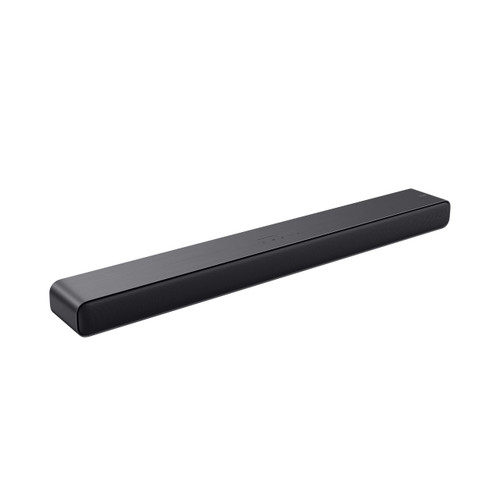
Effortlessly enrich your entertainment experience The latest generation of Beam is now equipped with Dolby Atmos. Enjoy panoramic sound for shows, movies, and games when the TV is on. Stream music, radio, and more when it’s off. Dolby Atmos maps sounds in space for a 3D effect -experience planes as if they’re flying overhead, hear footsteps moving across the room, and feel the musical score all around you. Trueplay tuning technology Adapts the sound for the unique acoustics of the room so your content always sounds just the way it should.* Excellent listening options Add speakers to create a wireless surround sound system and enjoy multiroom listening. Stream music, radio, audiobooks and podcasts from your favorite services with detailed stereo sound that fills the room. Easy setup and navigation Go from unboxing to unbelievable sound in minutes with only two cables and step-by-step guidance from the Sonos app. Control is easy with the Sonos app, your voice, and Apple AirPlay 2. Ask Amazon Alexa or Google Assistant to set timers, check the news, control your smart home devices, and more. What's included Bundle includes voucher for a free Beam wall mount, 30% coupon for additional accessories, and a $40 Apple Gift Card or a $40 credit towards another streaming service. *Requires iOS device. Sonos Beam Gen 2 Soundbar Set up Instructions Before you start Download the Sonos app for iOS or Android. Your Beam needs to be set up using the Sonos app before it can play TV audio. Place the Beam in your desired location and connect it to power. Keep the included HDMI cable and optical audio adapter ready nearby. The Sonos app will guide you which cables and ports to use when connecting your Beam to your TV. Set up a new Sonos system with Beam 1. Open the Sonos app for iOS or Android. 2. Select Speaker or component, then create or sign in to your Sonos account. 3. Select Add on the popup showing your Sonos Beam. If using the Sonos S1 Controller, select Continue > Set up products. 4. Follow the steps in the app to set up your Beam and add your content services. Add Beam to your existing system 1. Open the Sonos app for iOS or Android. 2. Go to the settings menu and select + Add Speaker or Component. If using the Sonos S1 Controller app, go to the Settings tab and select System > +Add Product. 3. Follow the steps in the app to add Beam to your Sonos system. Control Beam with your voice With Sonos Voice Control, Amazon Alexa, or the Google Assistant added to your Beam, you can use your voice to turn your TV on and off as well as adjust the TV volume. To use these commands, Beam must be connected to your TV’s HDMI-ARC input and your TV needs to have HDMI-CEC enabled. Voice commands for turning the TV on and off will not work if Beam is connected via optical adapter.
Product Details
- Sonos Beam Gen 2 Soundbar User Guide (PDF)